How to connect to the dorm internet (Router + Switch)
Requirements:
- router
- switch
- 3 RJ45 ethernet cables (you can use 2 if you have WI-FI accessible on your device)
- a computer with administrator access and a RJ45 ethernet port. (preferably a laptop with WI-FI)
You can use either a computer with a RJ45 Ethernet port, either an USB Ethernet Adaptor such as this one here.
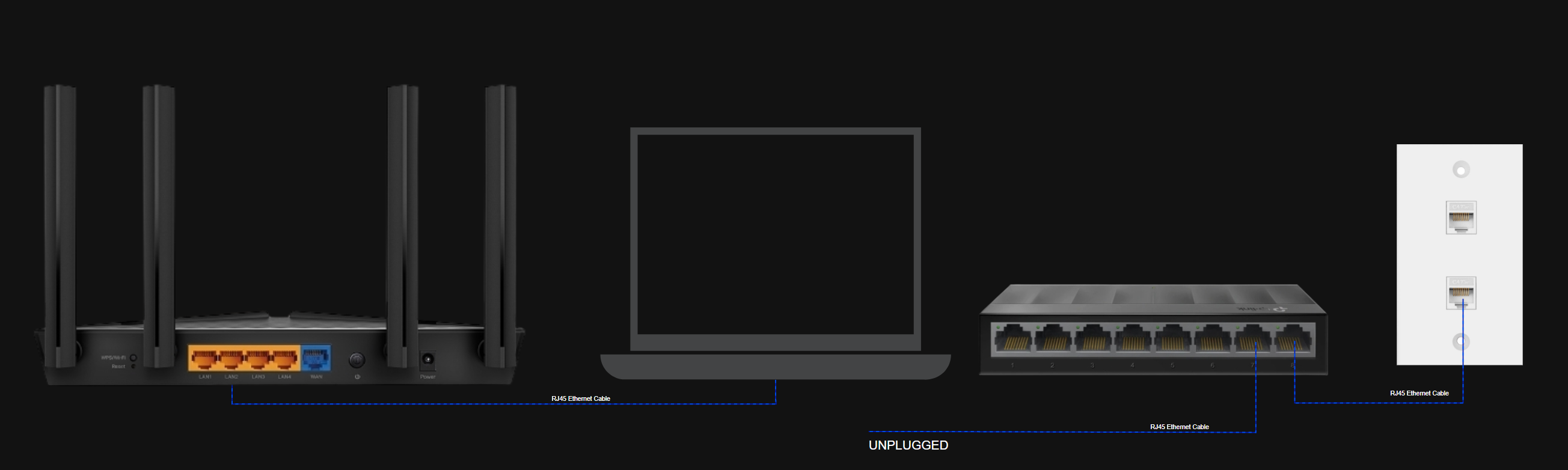
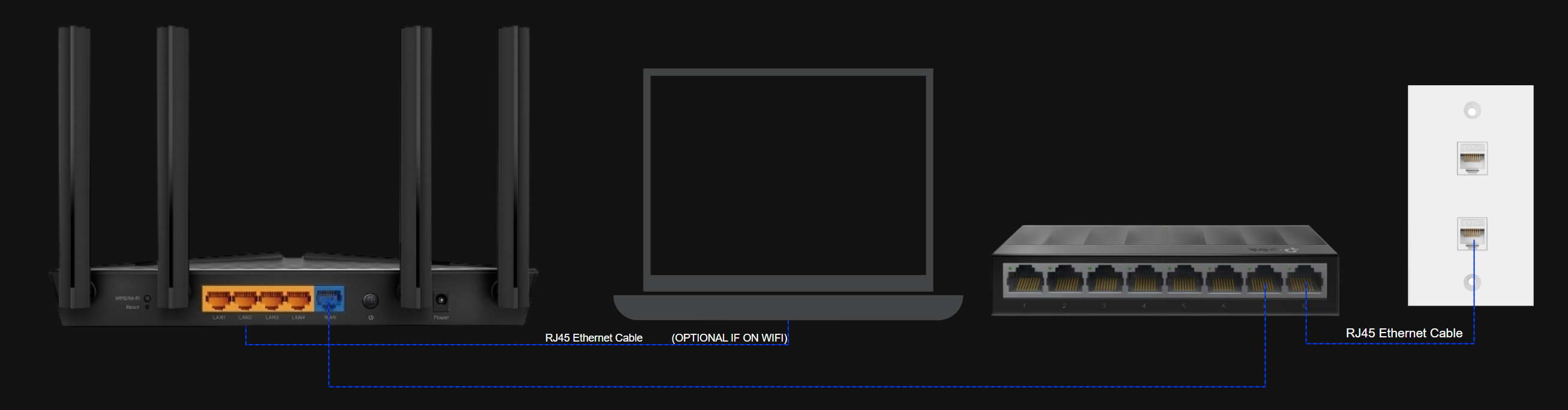
Initial Connection Diagram
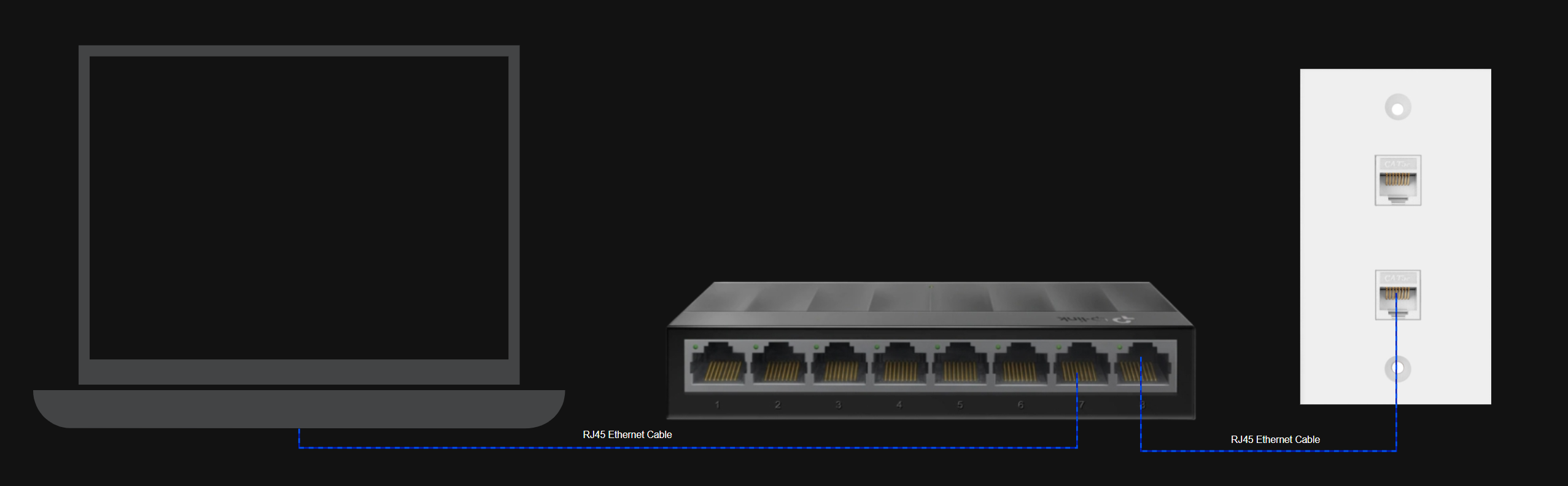
Please proceed only when you have finished the initial wiring as shown above!
Connection Setup
The dorm network uses 802.1X authentication. For this to work, you must enable the Wired AutoConfig service:
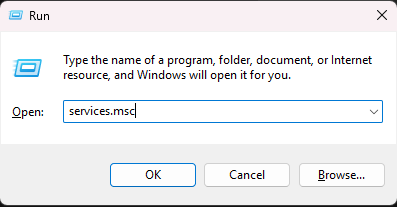
Press Win + R, type services.msc, press Enter.
- Scroll down and find Wired AutoConfig.
- Right-click → Properties.
- Set Startup type = Automatic.
- Click Start, then OK.
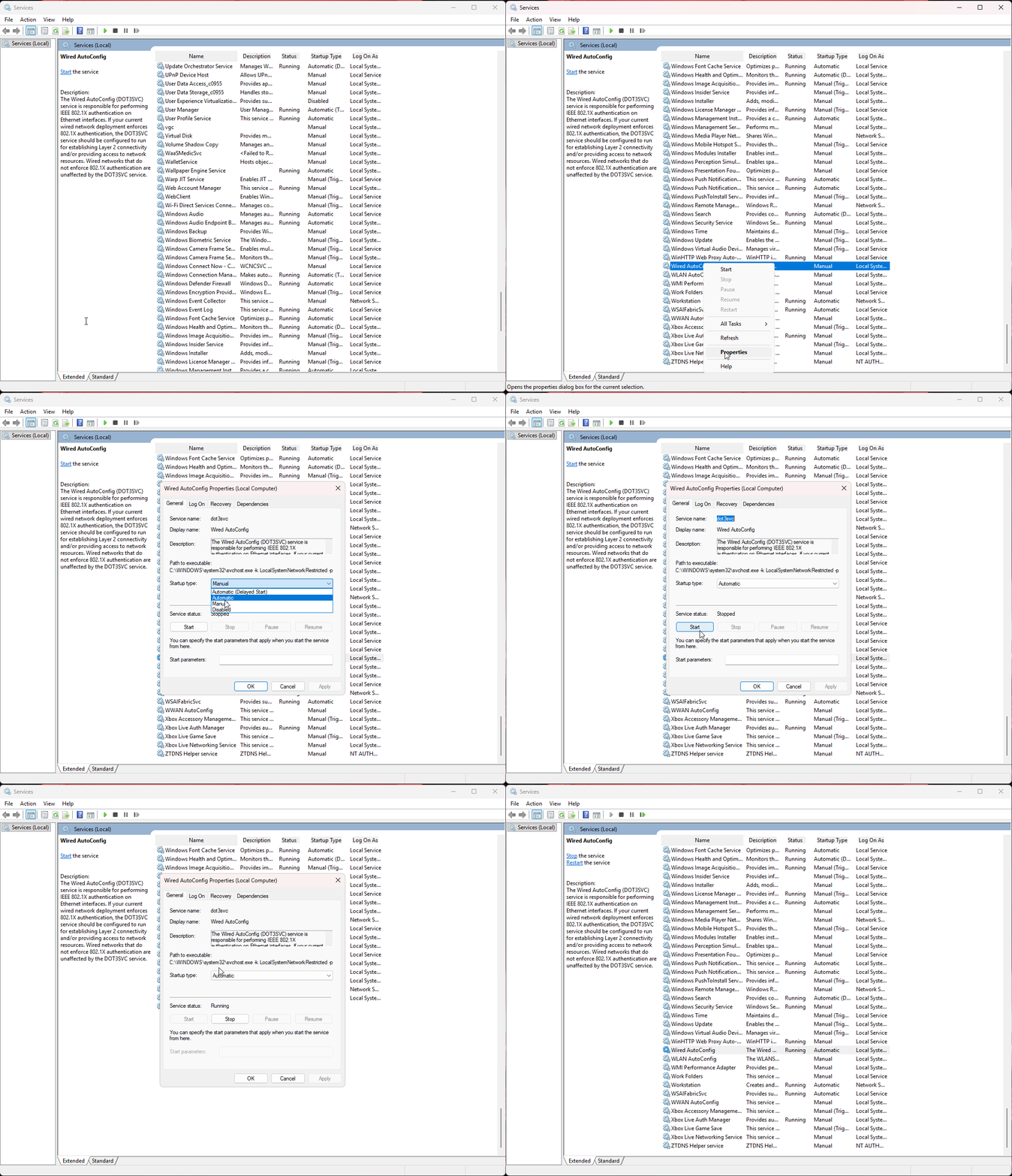
Without this, your PC will not be able to authenticate with the dorm network.
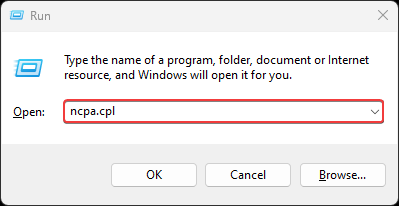
Press Win + R, type ncpa.cpl, press Enter.
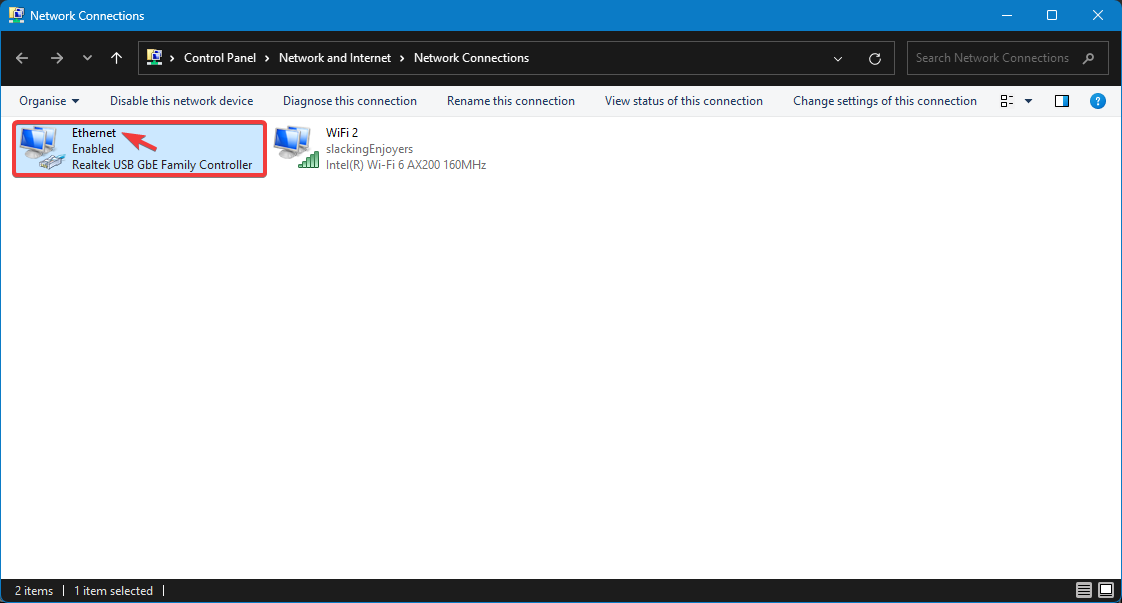
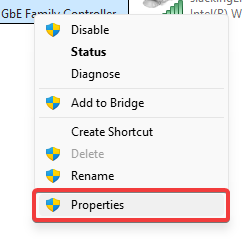
In the list of adapters, right-click your Ethernet adapter → Properties.
Tick Enable IEEE 802.1X authentication.
Choose network authentication method: Microsoft: Protected EAP (PEAP).
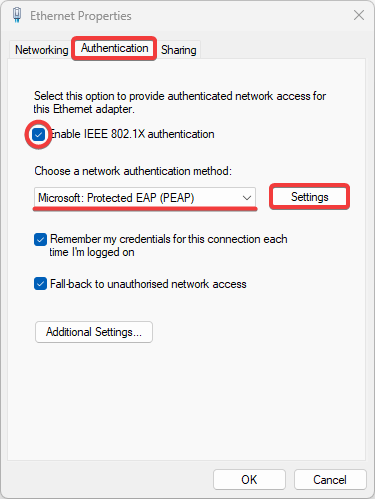
Click Settings → make sure Validate server certificate is not checked.
For Authentication Method, select Secured password (EAP-MSCHAP v2).
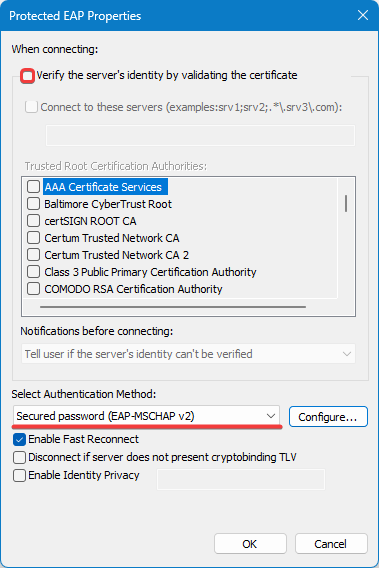
Click OK to close the current window.
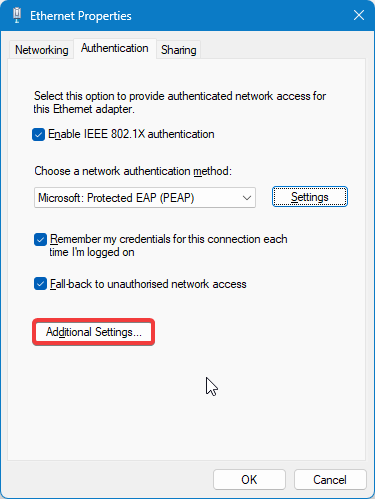
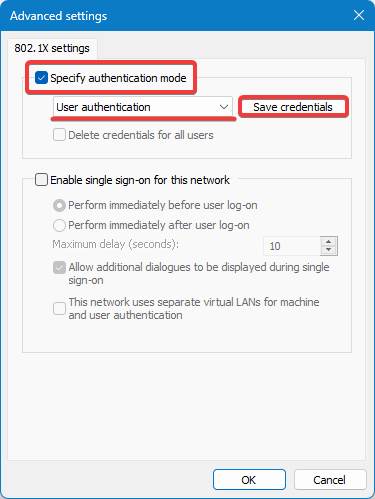
At Specify authentication mode, select User authentication.
Click Save credentials
Enter your username and password provided to you in my.upb.ro such as the following email:
ion.popescu@stud.fils.upb.ro
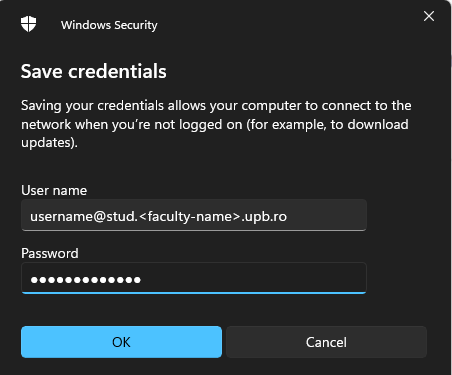
Press OK → then OK again to close all windows.
You should now see the Ethernet adapter trying to authenticate with the dorm network.
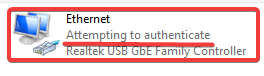
In order to start the router setup, you need to gather all the information provided by the dorm network. Example:
DO NOT USE THESE! - Use the ones you have in your case.
IP Address: 10.210.0.86
Subnet Mask: 255.255.240.0
Default Gateway: 10.210.0.1
Physical Address: 00-E0-4C-68-13-AF (also referred as MAC Address)
Press Win + R, type cmd.exe, press Enter.
Type ipconfig, press Enter.
Look for the following information stated in the Ethernet adapter:
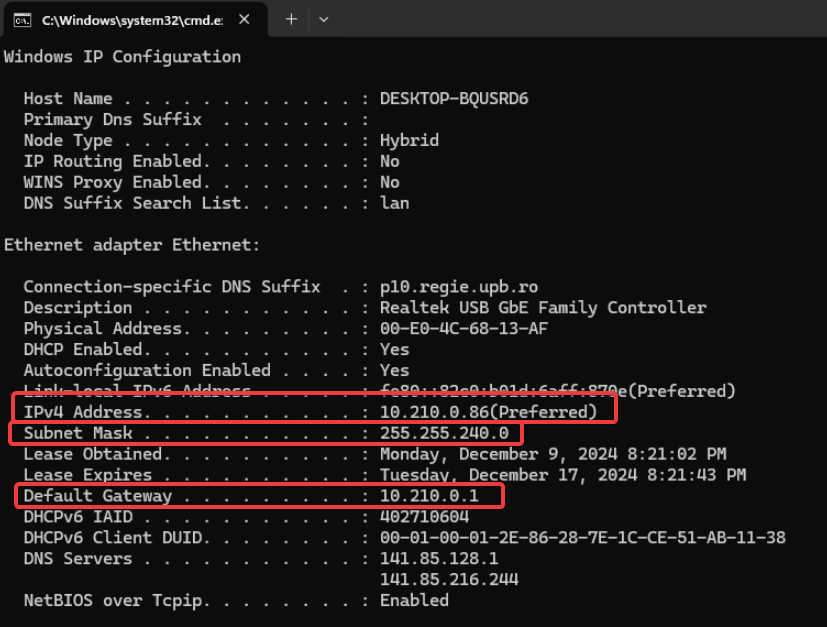
In order to access your router setup page, you will either need to connect to WI-FI or connect your computer to one of the LAN ports of the router.
This step is OPTIONAL if you have a WI-FI connection!
Whatever you do, DO NOT UNPLUG the RJ45 cables from the switch!
This will break the authentication and you will have to repeat the whole procedure.
Now that you are successfully connected to the router, we can look for the router IP address. (the Default Gateway, in my case, 192.168.1.1)
While in the same window of Command Prompt or cmd.exe, now being connected to the router you should see a different output of ipconfig.
Depending on your connection type, either by cable or by using WI-FI, your place will differ.
The IP you are looking for should start with 192.168.x.x or 10.x.x.x! Remember to look for Default Gateway not IPv4 Address.
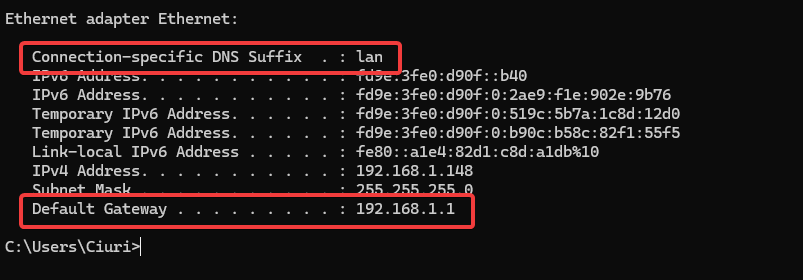
Open up a browser of your choosing and navigate to the router setup page, in the following example is 192.168.1.1, but you should use the one you have saved earlier from Default Gateway.

In my example, I am using an older router but my recommendation would be an TP-Link Archer AX23 v1 or v1.20 for better upgradability (also labelled as AX1800).
You will be prompted to login with a username and a password (or for newer models, only a password).
Please look for that information on the bottom of your router.
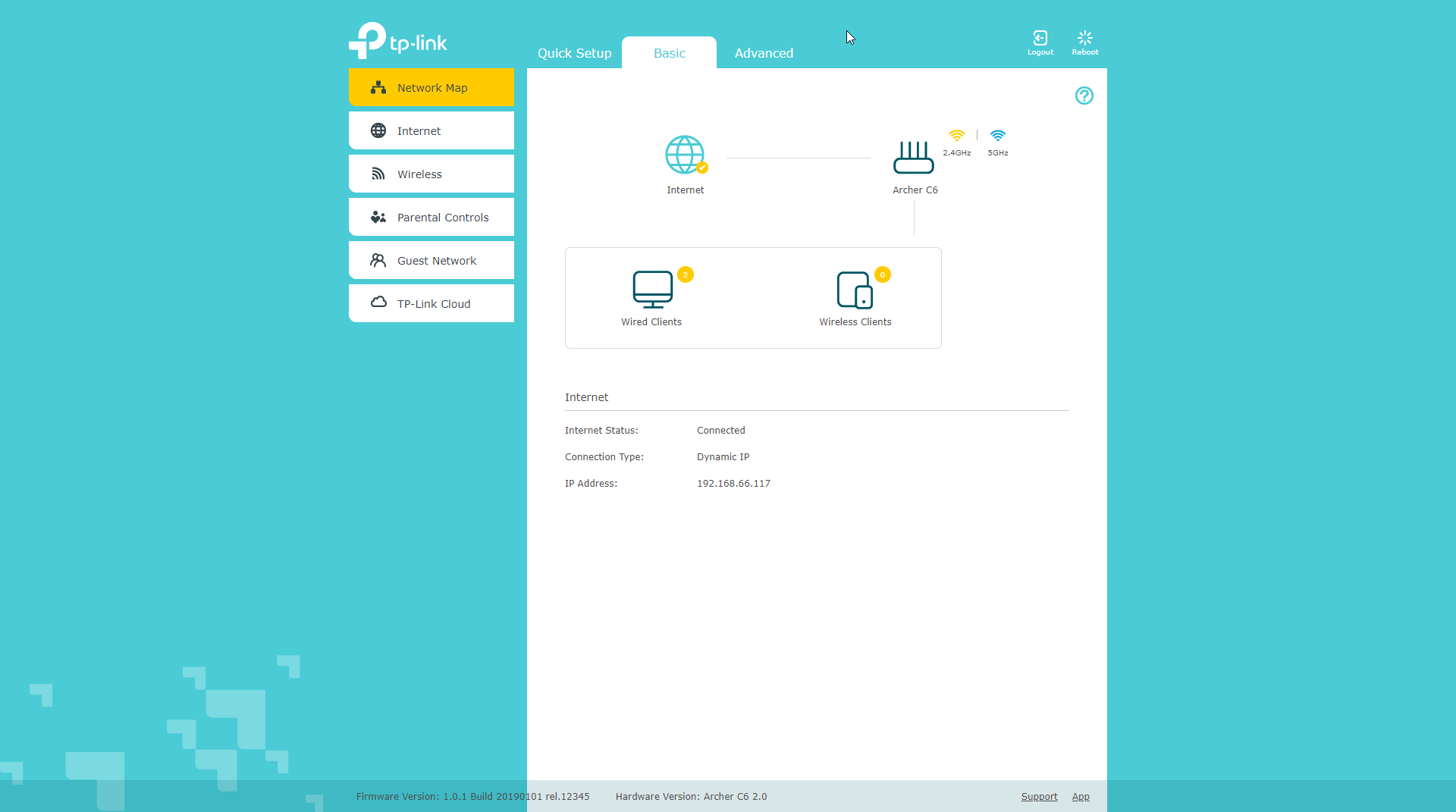
Once on this page, navigate to the Advanced section of your router and in the Internet settings tab and fill out the previously gathered information from ipconfig as shown in the picture.
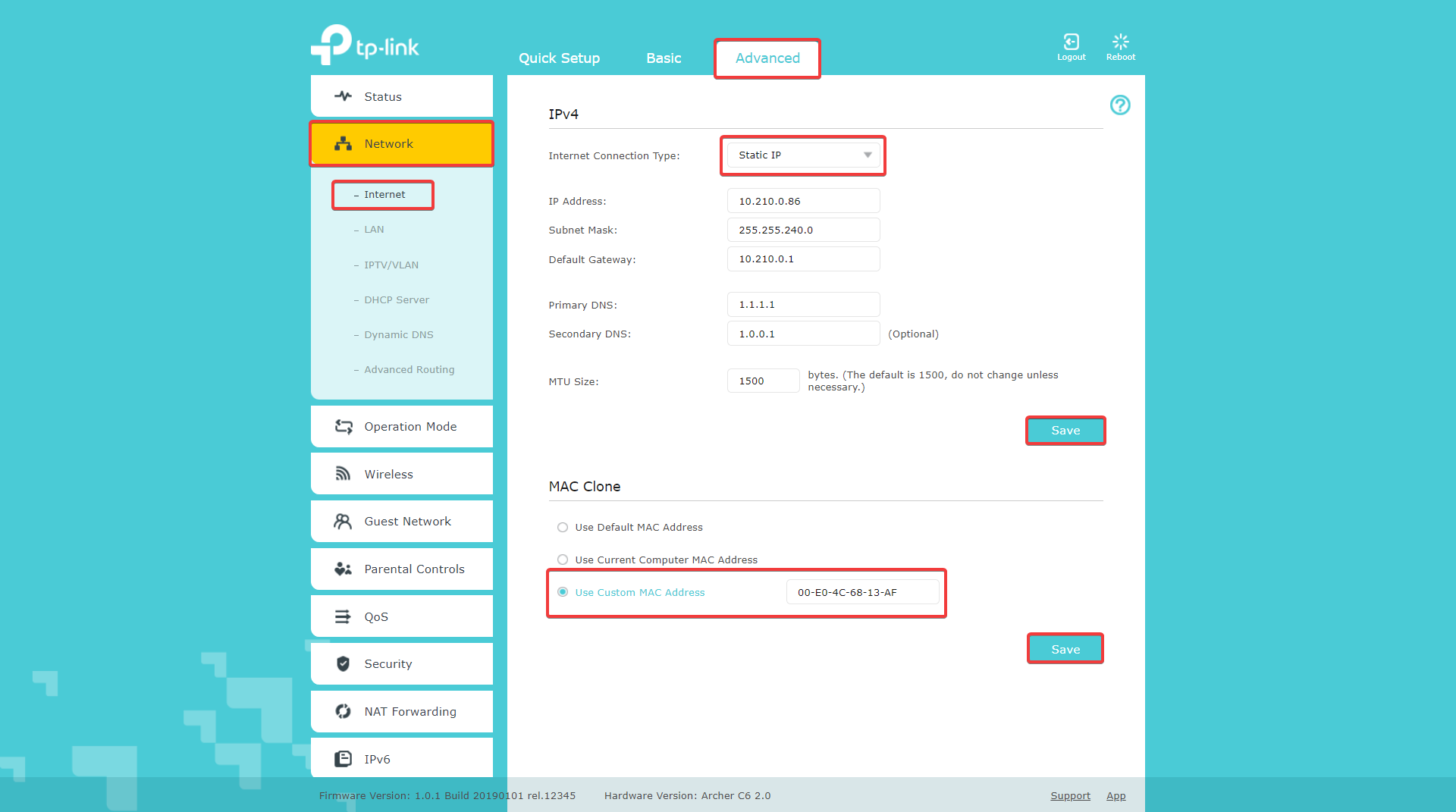
Once you have pressed Save, if you are on WI-FI, you can now safely unplug the cable from your laptop and plug it in the WAN port of the router or if you have unplugged it earlier, you can now plug it in the WAN port.
Authentication on the router can take up to 1 minute so be patient!
Congratulations! You have successfully configured your router and now have internet connection! If you still have no connection I would advise you to read the this guide (Work in Progress) or contact me. mirceaciuraru@gmail.com / 0750269469